

Keboola MCP Server
The Keboola MCP Server lets Claude, Cursor, ChatGPT, VS Code, Windsurf, and Make work inside your Keboola project with your own permissions — query data, build transformations, run and debug jobs.
Model Context Protocol (MCP) is the open standard AI clients use to call external tools. Keboola runs an MCP server for every project, which gives a connected assistant the powers of a Keboola expert user: describe what you need in plain language and it queries your data, builds the transformation, runs the job, and documents what it finds — with no clicks required.
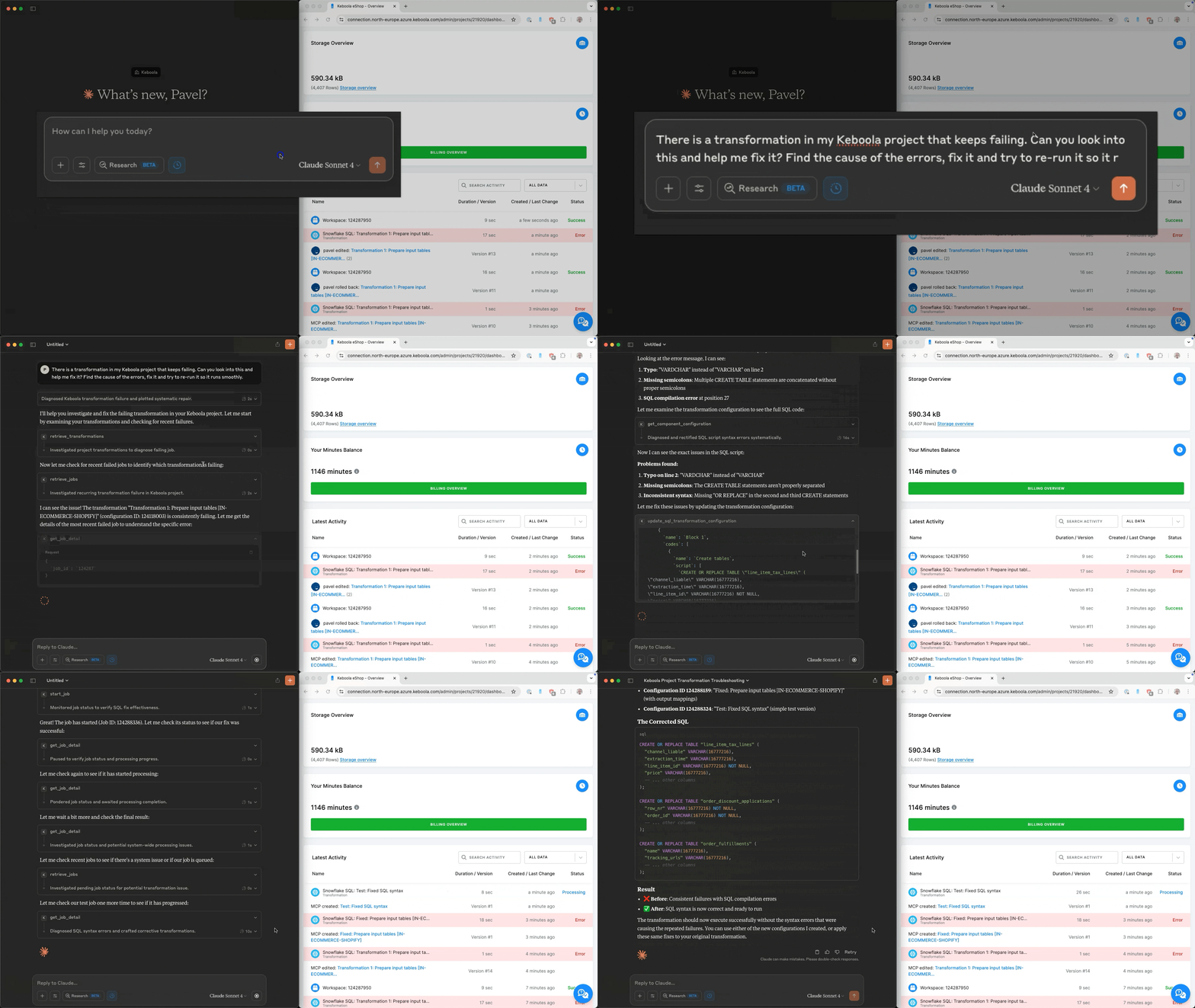
What your assistant can do
Section titled “What your assistant can do”Connected to your project, an assistant can:
- Search and explore your data — buckets, tables, and columns.
- Set up and manage workflows — no code required.
- Build SQL queries and transformations using natural language.
- Launch and monitor jobs in real time, and debug the ones that fail.
- Document everything automatically — down to the column level.
The tool categories, the read-only set, and how to restrict them are in the tools reference.
What people use it for
Section titled “What people use it for”- Analyze customer orders, segment users, or monitor campaign performance — describe what you need and the assistant queries the project directly.
- Pull data from any connected system (CRM, ERP, ads) without touching the UI.
- Update and run data pipelines before a key meeting, without technical help.
- Generate clear, human-readable descriptions down to the column level, for full data transparency.
How it works
Section titled “How it works”The MCP Server is hosted on every multi-tenant stack and supports OAuth authentication, so any AI assistant that speaks remote Streamable HTTP with OAuth can connect to it — nothing to install. Streamable HTTP is the recommended transport, providing bidirectional streaming for improved performance and reliability.
Permissions follow you. When you connect over OAuth, the assistant gets the permissions that match your Keboola role. If you need finer-grained control than your role gives, run the server yourself with a specific Storage token and workspace schema, or restrict the tool set with authorization headers.
Remote server setup
Section titled “Remote server setup”Your project’s server URL, the per-client steps, and the programmatic recipes all live on Connect an AI client — start there. If your client can’t do remote OAuth, that page also covers the mcp-remote bridge and running the server locally.
Keeping an agent off production
Section titled “Keeping an agent off production”You can scope the server to a development branch, so an agent’s changes never land in production:
- Remote server: send the
X-Branch-IdHTTP header with your branch ID (set by the client, like the tool-authorization headers). - Local server: set the
KBC_BRANCH_IDenvironment variable.
Without either, the server operates on the production branch.
This section
Section titled “This section”- Connect an AI client — step-by-step for Claude, ChatGPT, Cursor, Windsurf, VS Code, and Make, plus connecting from your own code.
- Tools reference — what the assistant can call, and how to restrict it with
X-Allowed-Tools,X-Disallowed-Tools, andX-Read-Only-Mode. - Run the server yourself — Docker or
uv, for custom permissions, testing, or a custom client.
How it relates to Keboola’s other tools
Section titled “How it relates to Keboola’s other tools”| Use | Reach for |
|---|---|
| Let an AI client work inside one project through your own permissions | MCP Server (this section) |
| Drive Keboola from the terminal, or give an agent sandboxed control across your whole organization | kbagent CLI — it can also call MCP tools via kbagent tool |
| Ask questions and build inside the Keboola UI | Kai |
| Set up your coding agent with Keboola skills | AI Kit |
Support and feedback
Section titled “Support and feedback”Need help or want to contribute? Open an issue on GitHub to report bugs, request features, or suggest improvements. For dev environments or contributing to the server itself, see the MCP Server repository.
Next: Connect an AI client →