

Connect an AI client to Keboola
Connect Claude, ChatGPT, Cursor, Windsurf, VS Code, or Make to the Keboola MCP Server — get your server URL, set the client up, authenticate with OAuth. Plus connecting from your own code with the Claude Messages API, OpenAI Agents SDK, or LangChain.
Get your AI client talking to your Keboola project. Every route below does the same thing: point the client at your project's MCP server URL, authenticate with your Keboola account, and pick the project — after which the assistant can use the Keboola tools. For what the server is and how permissions work, see the MCP Server overview.
You'll need a Keboola project and an account whose role has the permissions you want the assistant to have — over OAuth it inherits exactly those.
Step 1 — Get your server URL
Section titled “Step 1 — Get your server URL”The MCP Server runs on every multi-tenant stack, and your stack is the host in your Keboola URL: connection.<stack>.keboola.com in the browser means mcp.<stack>.keboola.com for MCP. Copy the whole URL from the row that matches:
| Stack (region) | Server URL |
|---|---|
| US Virginia AWS (default) | https://mcp.keboola.com/mcp |
| US Virginia GCP (us-east4) | https://mcp.us-east4.gcp.keboola.com/mcp |
| EU Frankfurt AWS (eu-central-1) | https://mcp.eu-central-1.keboola.com/mcp |
| EU Ireland Azure (north-europe) | https://mcp.north-europe.azure.keboola.com/mcp |
| EU Frankfurt GCP (europe-west3) | https://mcp.europe-west3.gcp.keboola.com/mcp |
You can also copy it from the platform: open the avatar menu (top right) → Keboola MCP Server — or Project Settings → the MCP Server tab. That page has a Copy URL to clipboard button, plus per-client instructions and an install button for some clients.
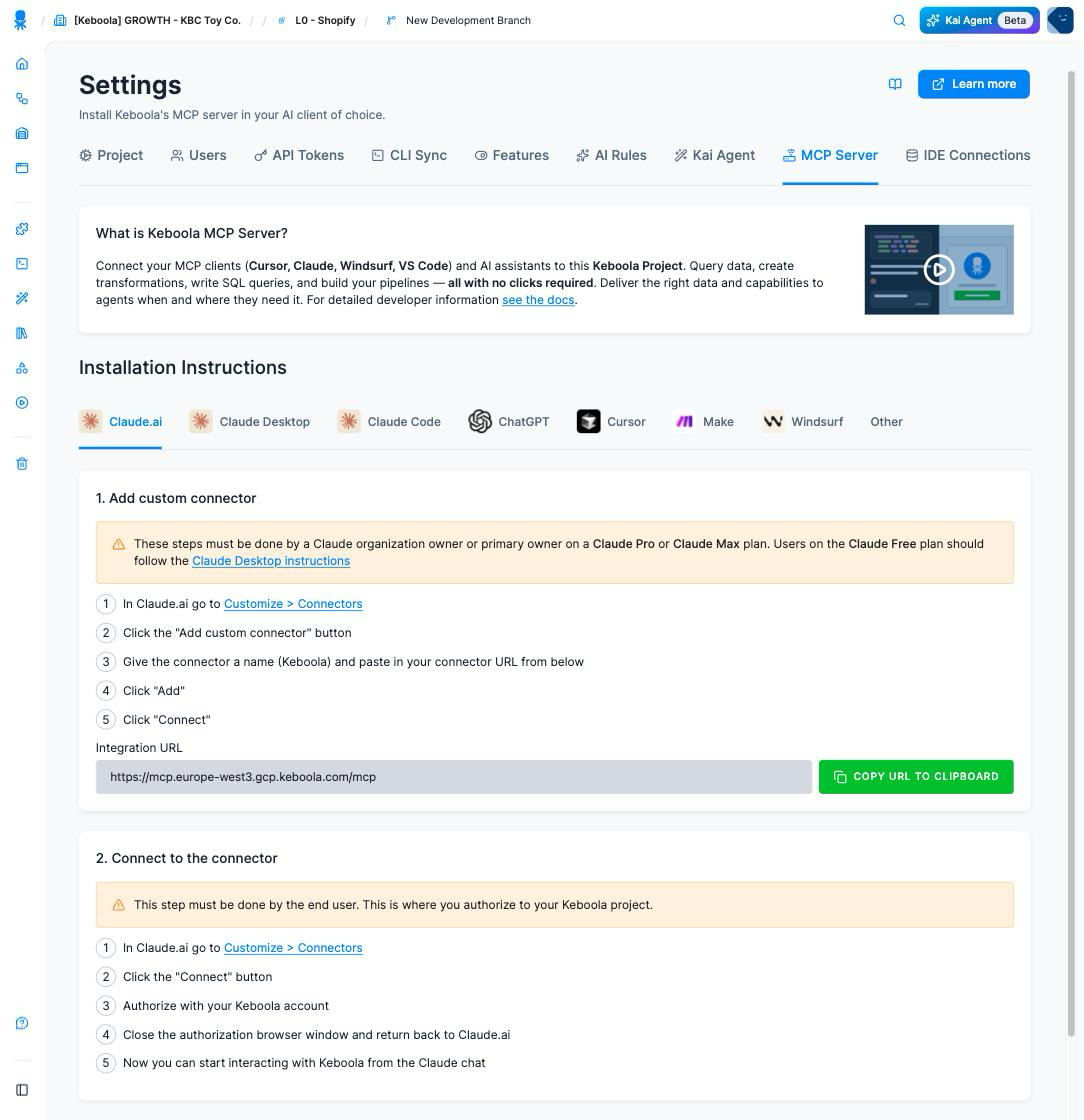
Wherever you take it from, paste the full URL. The <YOUR_REGION> placeholder in the snippets below is a stand-in for the whole host: on the default stack the region segment disappears entirely (mcp.keboola.com), and on GCP/Azure it carries the provider (us-east4.gcp, north-europe.azure).
Step 2 — Set up your client
Section titled “Step 2 — Set up your client”- In Claude, go to Customize → Connectors.
- Click +, then Add custom connector.
- Give it a name (Keboola) and paste in the full server URL from step 1.
- Click Add.
- Click Connect on the new connector, authenticate with your Keboola account, and select the project you want to connect to.
Fallback — the mcp-remote adapter. For MCP clients that don't yet support native remote (OAuth) connections, bridge to the remote server with mcp-remote. This requires Node.js on your computer.
-
Open the Claude menu on your computer and select Settings…
-
Click Developer in the left-hand bar, then Edit Config.
-
Paste this into the config file and save:
{"mcpServers": {"keboola": {"command": "npx","args": ["mcp-remote","https://mcp.<YOUR_REGION>.keboola.com/mcp"]}}} -
Restart Claude Desktop. You'll be prompted to authenticate and select a project.
- Open settings — log in, click your profile icon in the bottom-left corner, and select Settings.
- Turn on Developer mode — select the Connectors tab, open Advanced settings, toggle Developer mode on, and acknowledge the warning. Back on the Connectors page, click Create.
- Configure the connector — in the "New Connector" window, give it a Name ("Keboola") and an optional description, then paste your MCP Server URL (step 1). Authentication is set to OAuth automatically. Tick the box acknowledging the beta, then click Create.
- Authorize — you're redirected to Keboola; sign in if prompted and select the project. Once authorized you land back in ChatGPT with a "Keboola is now connected" confirmation.
- Use it in a chat — enable the Keboola connector for the conversation from the message composer's tools/connectors menu (the exact control varies by ChatGPT version), then ask about your data: "What data tables are in my project?" or "Show me the latest job runs."
Click the deeplink for your region:
| Stack (region) | Cursor deeplink |
|---|---|
| US Virginia AWS (default) |  |
| US Virginia GCP (us-east4) | |
| EU Frankfurt AWS (eu-central-1) | |
| EU Ireland Azure (north-europe) | |
| EU Frankfurt GCP (europe-west3) | |
|
| US Virginia GCP (us-east4) | |
| EU Frankfurt AWS (eu-central-1) | |
| EU Ireland Azure (north-europe) | |
| EU Frankfurt GCP (europe-west3) | |
Alternatively, install it from the platform:
- Open the avatar menu → Keboola MCP Server (or Project Settings → the MCP Server tab).
- Open the Cursor tab.
- Click the Add Keboola MCP server to Cursor button.
- Log in to your Keboola account and select the project.
One command, using the full server URL from step 1:
claude mcp add --transport http keboola https://mcp.<YOUR_REGION>.keboola.com/mcpThen run /mcp in Claude Code and authenticate with your Keboola account to select the project.
Windsurf supports MCP through its native integration with Cascade. Add the server with a manual configuration:
-
Open the MCPs panel in Cascade (in current builds: Settings → Cascade → MCP Servers).
-
Add a custom server, or edit
mcp_config.jsondirectly (~/.codeium/windsurf/mcp_config.json). -
Add the Keboola MCP Server configuration:
{"mcpServers": {"keboola": {"serverUrl": "https://mcp.<YOUR_REGION>.keboola.com/mcp"}}} -
Put the full server URL from step 1 in
serverUrl. -
Refresh the server list.
-
Authenticate with your Keboola account and select the project.
For detailed instructions and troubleshooting, see the Windsurf MCP documentation.
VS Code reaches MCP servers through GitHub Copilot's agent mode. You need VS Code with the GitHub Copilot extension enabled.
-
Make sure the GitHub Copilot extension is up to date.
-
Open the Command Palette (
Ctrl+Shift+P/Cmd+Shift+P) and run MCP: Add Server. -
This creates or opens your MCP configuration file (
mcp.json). -
Add the configuration — VS Code connects to remote servers natively over Streamable HTTP, no adapter needed:
{"servers": {"keboola": {"type": "http","url": "https://mcp.<YOUR_REGION>.keboola.com/mcp"}}} -
Put the full server URL from step 1 in
url, and save. -
Restart VS Code, or check the server from the Command Palette with MCP: List Servers.
-
Authenticate with your Keboola account and select the project.
Using the tools: open the Chat view, enable agent mode, and click Tools to see the available Keboola tools. Type # in the chat to reference a specific tool or resource.
For detailed setup and troubleshooting, see the VS Code MCP documentation.
- Create your scenario in Make.
- Search for and add the MCP Client module.
- Select Keboola from the module's dropdown.
- Paste the server URL from step 1 (the platform's Make tab has a copy button) and save. Make loads the available Keboola tools automatically.
Any AI assistant that supports a remote Streamable HTTP connection with OAuth can use the server:
- Take the server URL for your stack from step 1.
- Paste it into your assistant's settings.
- Save and refresh the assistant. You'll be prompted to authenticate with your Keboola account and select the project you want to connect to.
If your client can't do remote OAuth yet, bridge to it with the mcp-remote adapter — open the Claude tab above for the config — or run the server locally.
Result: the assistant lists Keboola tools and works in the project with the permissions your Keboola role has. Ask it "What tables are in my project?" to confirm the connection.
Scope the connection to a development branch
Section titled “Scope the connection to a development branch”To keep an agent's changes off production, send the X-Branch-Id HTTP header with your development branch ID. Whether you can set a custom header at all depends on the client — check its documentation; the desktop clients above generally can't, so the reliable route is running the server yourself with KBC_BRANCH_ID set. Without either, the server works on production.
Connect from your own code
Section titled “Connect from your own code”Claude Messages API with MCP connector (beta)
Section titled “Claude Messages API with MCP connector (beta)”Anthropic's MCP connector connects remote MCP servers directly through Claude's Messages API, so you don't need a standalone MCP client if you're already calling the API.
- Direct API calls — configure servers with the
mcp_serversparameter in your request, and enable tools via anmcp_toolsetin thetoolsarray. - Beta header — send
anthropic-beta: mcp-client-2025-11-20(the earliermcp-client-2025-04-04version is deprecated). - Tool calling is the MCP functionality currently supported through the connector.
- Accessibility — the target MCP server has to be publicly reachable over HTTP, which the hosted Keboola server is.
For API examples and configuration options, see the official MCP connector documentation.
OpenAI Agents SDK (Python)
Section titled “OpenAI Agents SDK (Python)”The OpenAI Agents SDK ships with first-class MCP support. Start the Keboola MCP Server (locally via uvx, or remotely over Streamable HTTP) and register it:
import asyncio
from agents import Agent, Runnerfrom agents.mcp import MCPServerStdio
async def main():    async with MCPServerStdio(        params={            "command": "uvx",            "args": [                "keboola_mcp_server",                "--api-url", "https://connection.<YOUR_REGION>.keboola.com",            ],            "env": {                "KBC_STORAGE_TOKEN": "YOUR_KEBOOLA_STORAGE_TOKEN",                "KBC_WORKSPACE_SCHEMA": "YOUR_WORKSPACE_SCHEMA",            },        }    ) as mcp:        agent = Agent(            name="Assistant",            instructions="Use the Keboola tools to achieve the task",            mcp_servers=[mcp],        )        result = await Runner.run(agent, "Load yesterday's CSV into Snowflake")        print(result.final_output)
asyncio.run(main())
The SDK calls list_tools() on the server automatically, making every Keboola operation available to the model. The server needs credentials of its own — without KBC_STORAGE_TOKEN every tool call comes back with "Storage API token is not provided." See Run the server yourself for what those values are.
LangChain
Section titled “LangChain”LangChain has an official MCP adapter, langchain-mcp-adapters. Point its MultiServerMCPClient at the server and load the tools into your agent:
import asyncio
from langchain_mcp_adapters.client import MultiServerMCPClient
async def main():    client = MultiServerMCPClient(        {            "keboola": {                "transport": "streamable_http",                "url": "https://mcp.<YOUR_REGION>.keboola.com/mcp",                "headers": {"Authorization": "Bearer YOUR_OAUTH_ACCESS_TOKEN"},            }        }    )    tools = await client.get_tools()    # pass `tools` to your LangChain / LangGraph agent
asyncio.run(main())
The hosted endpoints enforce OAuth — an unauthenticated call returns 401. Either carry an access token as shown, or point the client at a server you run yourself, which authenticates with a Storage token instead.
Other frameworks
Section titled “Other frameworks”- CrewAI — use the native MCP support via
MCPServerAdapterfromcrewai-tools[mcp]to expose the Keboola tools to your crew.
Building your own MCP client
Section titled “Building your own MCP client”If you're writing your own client, the server speaks the standard MCP protocols over stdio and Streamable HTTP. Start from the Model Context Protocol documentation for client developers; for how the Keboola server itself can be run and configured, see its GitHub repository and Run the server yourself.
Next: Tools reference →